Capture
Pick a display, a window, or draw a region. Preview the exact image and brush over passwords before anything is sent.
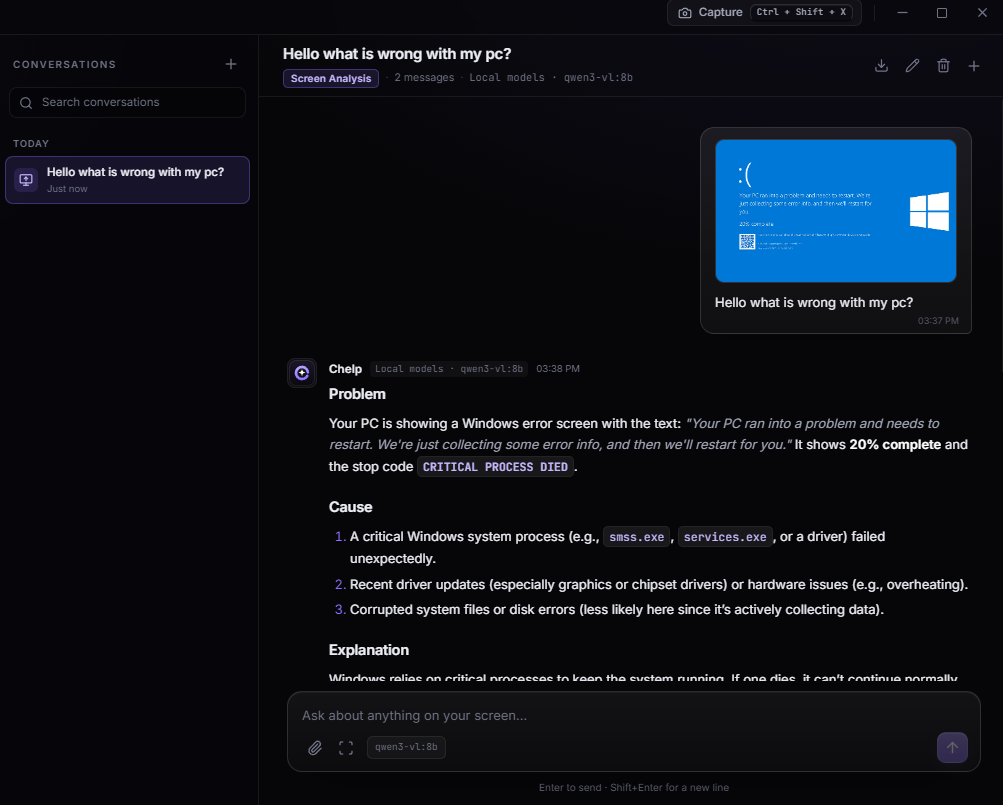
Chelp AI reads errors, dialogs, terminal output, and code — then explains the problem and the fix in plain language. Cloud models when you want them, local models when you don’t.
Screenshots happen only when you click. Nothing leaves your PC until you press Send.
Bring your own model
 DeepSeek
 OpenRouter
 OpenAI
 Gemini
Ollama
LM Studio
No prompt engineering, no copy-pasting screenshots into a chat box. Show, ask, fix.
Pick a display, a window, or draw a region. Preview the exact image and brush over passwords before anything is sent.
“Why did this crash?” or nothing at all — Chelp reads the screen and starts from what is actually visible.
Get the problem, the likely cause, and numbered steps. Facts and guesses are marked separately.
Everything is built around one idea: the screen is the context.
Displays, windows, or a drawn region on any monitor. Preview and redact sensitive spots before sending.
A permanent scope lock. Jailbreaks and harmful requests are refused locally, before a single byte reaches a provider.
Chelp can install Ollama itself, pull models with live progress, and keep the active model warm for two hours.
A compact always-on-top window that collapses to an orb. Ask without leaving the app you are debugging.
The answer always comes from the profile marked Active. No silent swaps, no surprise Qwen. Backup AI is opt-in and labeled.
Keys are encrypted with Windows DPAPI. Screenshots stay on disk until you send. History is local and can be wiped.
Chelp is built to explain what broke — not to run commands, browse for you, or become someone’s tool. Guard Mode sits in the main process, before any network request.
0 bytes sent
on a blocked request
One app, two ways to run it. The site always points at the latest GitHub release — with a direct build as a fallback.
Installs Chelp AI for your user, adds a Start menu shortcut, and keeps everything in one place.
A zipped app folder you can unpack anywhere. No installer, no registry entries, no Start menu icon.
For cloud providers, yes — paste a key or use one-click OpenRouter sign-in. Local models through Ollama or LM Studio need no key at all.
No. A capture happens only when you click Capture or press the hotkey. You see a preview, can redact parts of it, and nothing is uploaded until you press Send.
Yes. Chelp can install its own Ollama runtime and download a model, then work with no network connection. Cloud profiles are optional.
No. It is part of the request pipeline, not a setting. The model is also told it cannot run commands or control your computer — and the app has no tools to do it.
DeepSeek, OpenRouter, OpenAI, Google Gemini, any OpenAI-compatible endpoint, and local models via Ollama or LM Studio. Vision models are marked, so screen analysis uses a model that can actually see images.
Not yet. Chelp AI is Windows 10/11 (x64) only for now — it leans on Windows capture, the tray, DPAPI, and native window behavior.
Download the latest release and run it over the old version. Conversations and
settings stay in %APPDATA%\Chelp AI.